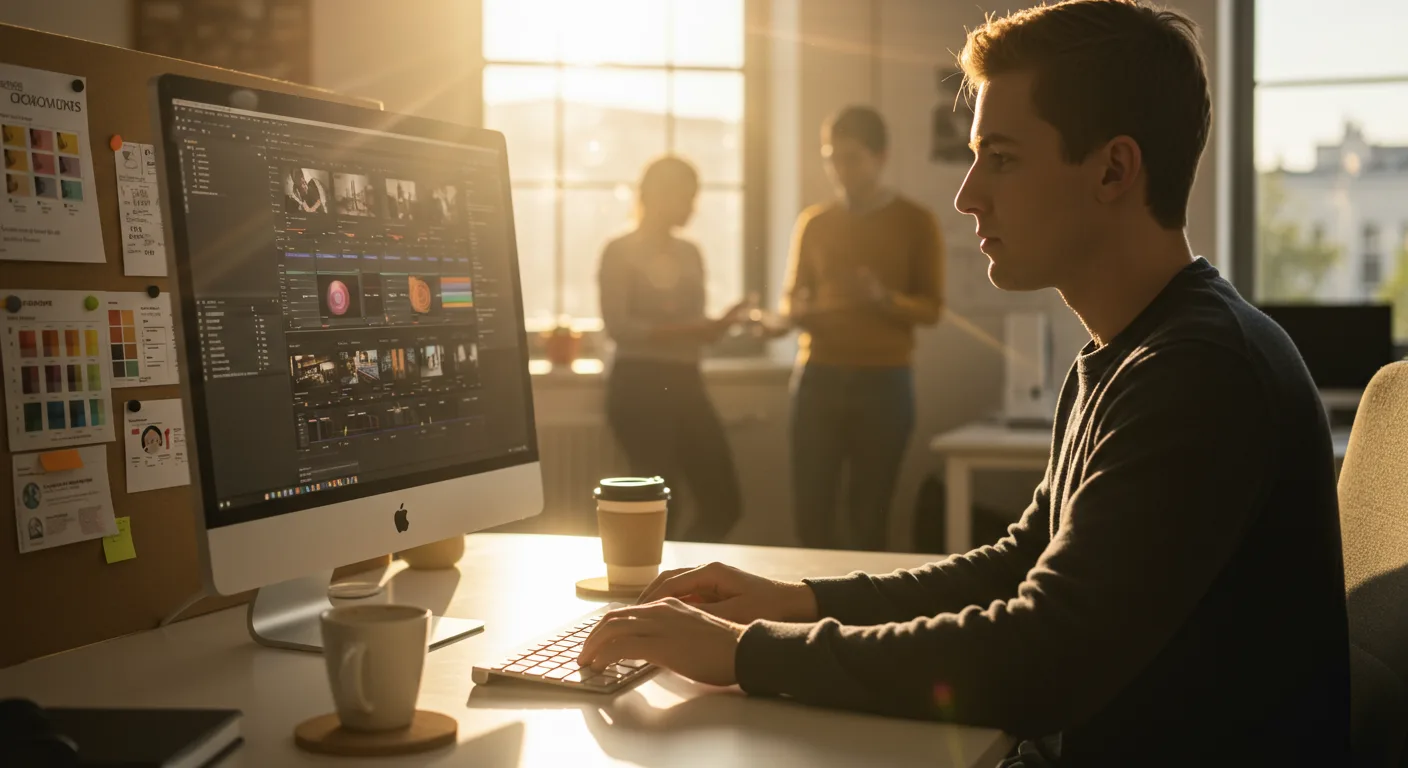
Mastering AI-Powered Editing in Adobe Premiere Pro for Marketing
In 2026, Adobe Premiere Pro remains a cornerstone for video editing, particularly in marketing. The rise of artificial intelligence (AI) has dramatically reshaped its capabilities. Marketers are now leveraging AI to streamline workflows, enhance video quality, and create more engaging content. Are you ready to unlock the full potential of AI-driven editing in Premiere Pro and stay ahead of the curve?
AI integration within Premiere Pro has moved far beyond basic auto-color correction. We’re now talking about intelligent scene detection, automated audio mixing, and AI-powered upscaling that can transform standard-definition footage into stunning 4K visuals. This means faster turnaround times, higher production values, and ultimately, more effective video marketing campaigns.
Adobe Sensei, Adobe‘s AI technology, powers many of these features. Understanding how to effectively use Sensei and other AI plugins is crucial for any marketing professional serious about video. For example, the “Scene Edit Detection” feature automatically identifies cuts in previously edited video, saving hours of manual work when repurposing old content.
As someone who’s been editing professionally for over a decade, I can attest to the fact that AI tools are not replacements for human creativity, but powerful assistants that allow us to focus on the bigger picture and deliver projects faster.
Advanced Color Grading and Correction Techniques
Color is a powerful tool in marketing. It evokes emotion, reinforces brand identity, and guides the viewer’s eye. In 2026, color grading in Premiere Pro is about more than just making your videos look pretty; it’s about strategically using color to achieve specific marketing objectives. Understanding color theory and mastering Premiere Pro’s Lumetri Color panel are essential skills.
First, let’s talk about HDR (High Dynamic Range). More displays now support HDR, and viewers expect videos to take advantage of this technology. Premiere Pro supports HDR workflows, but mastering them requires a deep understanding of color spaces, luminance levels, and display calibration. You need to ensure your videos look great on both SDR (Standard Dynamic Range) and HDR displays.
Here are a few advanced techniques to consider:
- Selective Color Adjustments: Use the Lumetri Color panel’s HSL Secondary controls to isolate specific colors in your footage and adjust them independently. This is powerful for enhancing product colors or correcting skin tones.
- Creative Look-Up Tables (LUTs): While pre-made LUTs can be a quick way to achieve a certain look, creating your own custom LUTs allows for greater control and consistency across your videos. Experiment with different color combinations and save your favorite looks as LUTs for future projects.
- Color Matching: Use the “Match Color” feature to automatically match the color of one clip to another. This is useful for ensuring consistency between different shots or scenes.
- Scopes and Waveforms: Don’t rely solely on your eyes. Use the scopes and waveforms to objectively evaluate the color and luminance levels in your footage. This will help you avoid over- or under-exposing your videos.
The rise of AI-powered color grading plugins is also changing the game. Tools like Red Giant Colorista V allow you to quickly achieve complex color grades with minimal effort. These plugins use AI to analyze your footage and suggest optimal color adjustments. However, it’s important to understand the underlying principles of color grading so you can fine-tune the AI’s suggestions and achieve the desired look.
A recent report by Visual Marketing Trends found that videos with professional color grading have a 35% higher engagement rate than those without. Investing in color grading skills and tools is a smart move for any marketing professional.
Leveraging Motion Graphics Templates (MOGRTs) for Efficiency
In the fast-paced world of marketing, efficiency is key. Motion Graphics Templates (MOGRTs) in Premiere Pro offer a powerful way to create visually appealing animations and graphics without having to learn After Effects. These templates are pre-designed animations that can be easily customized within Premiere Pro.
MOGRTs are particularly useful for creating lower thirds, titles, intros, outros, and other graphic elements that are commonly used in marketing videos. They allow you to quickly and easily add professional-looking graphics to your videos without having to spend hours creating them from scratch. You can find a wide variety of MOGRTs on Motion Array and other online marketplaces.
Here’s how to effectively leverage MOGRTs in your marketing workflow:
- Choose the Right Templates: Select MOGRTs that align with your brand’s visual identity. Consider the colors, fonts, and overall style of the templates.
- Customize the Templates: Don’t just use the templates as they are. Take the time to customize them to fit your specific needs. Change the colors, fonts, text, and animation timings.
- Create Your Own Templates: If you have experience with After Effects, consider creating your own custom MOGRTs. This will give you complete control over the design and animation of your graphics.
- Organize Your Templates: Keep your MOGRTs organized in a logical folder structure. This will make it easier to find the templates you need when you need them.
Premiere Pro’s integration with After Effects has improved significantly. You can now dynamically link After Effects compositions directly into your Premiere Pro projects, allowing for even more complex and customized motion graphics workflows.
Optimizing Audio for Maximum Impact
While visuals are important, audio plays a crucial role in the overall impact of your marketing videos. Poor audio quality can distract viewers and undermine your message. In 2026, Premiere Pro offers a range of powerful audio tools that can help you optimize your audio for maximum impact.
Here are some essential audio techniques to master:
- Noise Reduction: Use Premiere Pro’s noise reduction tools to remove unwanted background noise from your audio recordings. This is particularly important for interviews and voiceovers.
- Audio Mixing: Properly mix your audio tracks to ensure that all elements are balanced and clear. Pay attention to levels, panning, and equalization.
- Compression and Limiting: Use compression and limiting to control the dynamic range of your audio and prevent clipping. This will make your audio sound more professional and polished.
- Sound Design: Incorporate sound effects and music to enhance the emotional impact of your videos. Choose sounds that complement the visuals and support your message.
The Adobe Audition integration with Premiere Pro is seamless. For more complex audio tasks, you can easily send your audio clips to Audition for advanced editing and mixing. Audition offers a wider range of tools and features than Premiere Pro’s built-in audio editor.
AI-powered audio tools are also becoming increasingly popular. Tools like Adobe Podcast Enhance use AI to automatically clean up and enhance audio recordings. These tools can save you a significant amount of time and effort, especially when working with low-quality audio.
According to a study by 3M, visuals are processed 60,000 times faster in the brain than text. However, poorly produced audio can negate the impact of even the most stunning visuals. High-quality audio is essential for creating engaging and effective marketing videos.
Mastering Multi-Camera Editing for Dynamic Storytelling
Multi-camera editing is a powerful technique for creating dynamic and engaging videos, especially for interviews, live events, and product demonstrations. Premiere Pro’s multi-camera editing tools allow you to easily switch between multiple camera angles in real-time.
Here’s how to master multi-camera editing in Premiere Pro:
- Synchronize Your Footage: Before you can start editing, you need to synchronize your footage. Premiere Pro offers several synchronization options, including timecode, audio waveforms, and in points.
- Create a Multi-Camera Source Sequence: Once your footage is synchronized, create a multi-camera source sequence. This will combine all of your camera angles into a single sequence.
- Use the Multi-Camera Monitor: The multi-camera monitor allows you to switch between camera angles in real-time. Simply click on the desired camera angle to switch to it.
- Fine-Tune Your Edits: After you’ve made your initial edits, take the time to fine-tune them. Adjust the timing of your cuts, add transitions, and correct any audio or video issues.
Consider using keyboard shortcuts to speed up your multi-camera editing workflow. You can assign keyboard shortcuts to switch between camera angles, add transitions, and perform other common editing tasks.
Premiere Pro’s integration with transcription services is also a game-changer for multi-camera interviews. You can automatically transcribe your interviews and then use the transcript to quickly find and edit specific sections of the interview.
Advanced Export Settings and Platform Optimization for Marketing
The final step in the video editing process is exporting your video. In 2026, it’s crucial to understand the optimal export settings for different platforms and devices. Exporting your video with the wrong settings can result in poor video quality, slow loading times, and reduced engagement.
Here are some key considerations for optimizing your export settings:
- Resolution: Choose the appropriate resolution for your target platform. For YouTube and Vimeo, 1080p or 4K is generally recommended. For social media platforms like Instagram and TikTok, lower resolutions may be sufficient.
- Frame Rate: Use the same frame rate as your source footage. Common frame rates include 24fps, 30fps, and 60fps.
- Codec: H.264 is the most widely supported codec for online video. However, H.265 (HEVC) offers better compression and higher quality at the same bitrate.
- Bitrate: The bitrate determines the amount of data used to encode your video. Higher bitrates result in better quality but also larger file sizes. Experiment with different bitrates to find the optimal balance between quality and file size.
- Audio Settings: Choose the appropriate audio codec and bitrate. AAC is a common audio codec for online video. A bitrate of 128kbps or 192kbps is generally sufficient.
Premiere Pro’s export presets can be a useful starting point, but it’s important to understand the underlying settings and customize them to fit your specific needs. Consider creating your own custom export presets for different platforms and devices.
Adaptive Bitrate Streaming (ABS) is becoming increasingly important. ABS allows your video player to automatically adjust the video quality based on the viewer’s internet connection speed. This ensures that viewers can watch your video without buffering or interruptions.
According to a report by Statista, mobile video consumption is projected to continue to grow in the coming years. Optimizing your videos for mobile devices is essential for reaching a wider audience.
What are the most important AI features in Premiere Pro for marketing in 2026?
Key AI features include scene edit detection, automated audio mixing, AI-powered upscaling, and AI-driven color correction. These tools significantly speed up workflows and enhance video quality.
How can MOGRTs improve my marketing video production?
MOGRTs provide pre-designed animations that can be easily customized within Premiere Pro, saving you time and effort in creating lower thirds, titles, intros, and outros.
What audio techniques should I master for marketing videos?
Focus on noise reduction, audio mixing, compression, limiting, and sound design. High-quality audio is crucial for engaging viewers and conveying your message effectively.
What are the best export settings for marketing videos in 2026?
Consider resolution (1080p or 4K for YouTube/Vimeo), frame rate (matching source footage), codec (H.264 or H.265), and bitrate (experiment for optimal balance). Adaptive Bitrate Streaming (ABS) is also important.
How important is color grading for marketing videos?
Very important. Professional color grading evokes emotion, reinforces brand identity, and guides the viewer’s eye. Videos with professional color grading have higher engagement rates.
In 2026, mastering Adobe Premiere Pro for marketing is about embracing AI, optimizing audio/visuals, and understanding platform-specific requirements. From leveraging AI-powered editing and advanced color grading to utilizing MOGRTs and mastering multi-cam editing, the techniques discussed are vital for creating impactful video content. By implementing these strategies, you can produce engaging videos that capture attention and drive results. What specific technique will you implement today to elevate your video marketing strategy?



