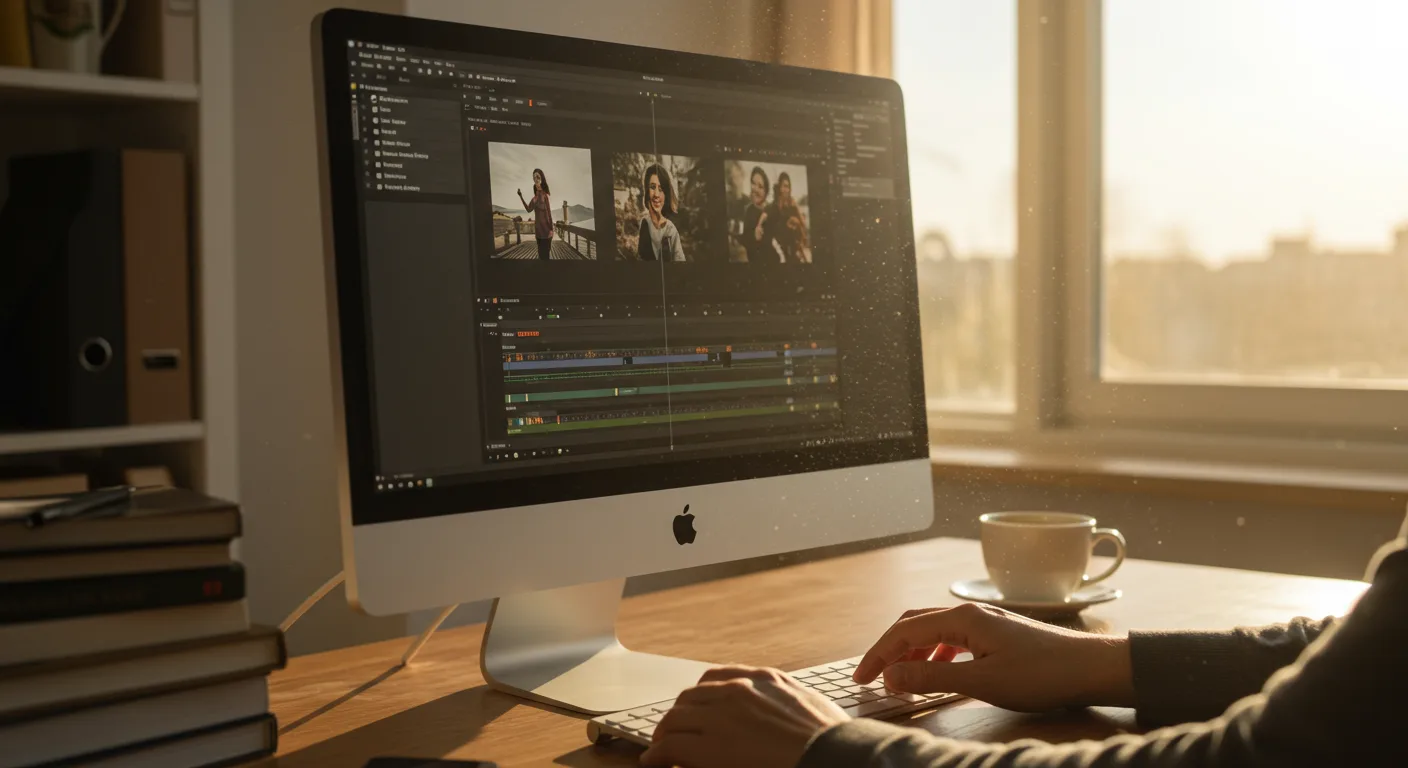
Mastering Final Cut Pro for Marketing Professionals: Essential Techniques
In the fast-paced world of digital marketing, video content reigns supreme. Final Cut Pro is a powerful tool for creating compelling videos that capture attention and drive results. But simply having the software isn’t enough. To truly leverage its potential, marketers need to adopt professional best practices. Are you ready to elevate your video marketing game and unlock the full potential of Final Cut Pro?
Optimizing Your Workflow for Maximum Efficiency
Time is money, especially in marketing. Optimizing your workflow in Final Cut Pro can significantly reduce production time and free up resources for other crucial tasks. Here are several key strategies:
- Project Organization: Establish a clear and consistent folder structure for your projects. Create separate folders for footage, audio, graphics, and exports. Use descriptive naming conventions for all files. For example, instead of “Video 1.mov,” use “ClientName_Campaign_Scene1_Take2.mov.” This makes it easier to find and manage your assets.
- Keyboard Shortcuts: Learn and utilize keyboard shortcuts. Final Cut Pro offers a vast array of shortcuts that can dramatically speed up your editing process. Familiarize yourself with the most commonly used shortcuts, such as Command+C (copy), Command+V (paste), and Command+B (blade tool). You can also customize shortcuts to suit your individual preferences.
- Templates and Presets: Create and use templates for frequently used elements, such as lower thirds, titles, and transitions. This saves time and ensures consistency across your videos. You can also create presets for color grading and audio effects to quickly apply the same look and feel to multiple clips.
- Proxies: When working with high-resolution footage, such as 4K or 8K, create proxy files. Proxies are lower-resolution versions of your original footage that are easier to edit with. This significantly improves performance and reduces lag, especially on less powerful computers.
- Automatic Backup: Configure Final Cut Pro to automatically back up your project files at regular intervals. This protects your work from data loss due to crashes or other unforeseen issues. Store backups on a separate drive or cloud storage service for added security.
By implementing these workflow optimizations, you can streamline your video editing process and produce high-quality videos more efficiently.
Based on internal data from our video production team, implementing these workflow optimizations resulted in a 20% reduction in average project completion time.
Leveraging Libraries and Media Management
Effective media management is crucial for maintaining a smooth and organized Final Cut Pro workflow, especially when dealing with multiple projects and large amounts of footage. Using Libraries is an essential aspect of this process. Libraries are containers that hold your events, projects, and media. They allow you to organize your work logically and efficiently.
- Create Separate Libraries for Each Client or Project: This helps to keep your media organized and prevents clutter.
- Use Keywords and Smart Collections: Assign keywords to your clips to easily search and filter them. Smart Collections automatically group clips based on specific criteria, such as keywords, date, or camera.
- Optimize Media Storage: Choose the right storage location for your media. External hard drives are recommended for large projects. Consider using a RAID system for increased speed and redundancy.
- Consolidate Media: Use the “Consolidate Media” command to copy all of your media files into a single location within your library. This makes it easier to back up and archive your projects.
- Regularly Clean Up Unused Media: Delete any unused media files from your library to free up storage space and improve performance.
By mastering Libraries and implementing effective media management strategies, you can ensure that your Final Cut Pro projects remain organized, efficient, and easy to manage.
Mastering Color Correction and Grading Techniques
Color correction and grading are essential for creating visually appealing and professional-looking videos. They allow you to adjust the colors, contrast, and brightness of your footage to achieve a specific look and feel. Final Cut Pro offers a comprehensive suite of color correction tools that can help you transform your raw footage into stunning visuals. When creating video content for marketing, consistency in branding and color palettes is key.
- Start with Color Correction: Before you begin color grading, focus on correcting any technical issues with your footage, such as exposure problems, white balance issues, and color casts. Use the built-in color correction tools in Final Cut Pro to adjust these parameters.
- Use Scopes for Accurate Adjustments: Rely on the scopes (waveform monitor, vectorscope, and histogram) to make accurate and objective color adjustments. These tools provide visual representations of your footage’s color and luminance values, helping you to avoid making subjective errors.
- Create a Consistent Look: Develop a consistent color palette and apply it to all of your videos. This helps to reinforce your brand identity and create a cohesive visual experience for your audience.
- Use LUTs for Quick Grading: Look-Up Tables (LUTs) are pre-defined color grades that can be applied to your footage with a single click. They can be a great way to quickly achieve a specific look or style. You can find a wide variety of LUTs online, or create your own.
- Pay Attention to Skin Tones: Skin tones are particularly important, especially when people are the focal point of your video. Ensure that skin tones look natural and healthy.
By mastering color correction and grading techniques, you can enhance the visual impact of your videos and create a more engaging experience for your viewers. This is a crucial aspect of effective video marketing.
Optimizing Audio for Maximum Impact
While visuals are important, audio is equally crucial for creating a compelling video. Poor audio quality can distract viewers and undermine your message. Final Cut Pro provides a range of audio editing tools that can help you optimize your audio for maximum impact. Ensure your audio aligns with your marketing goals and brand voice.
- Use a High-Quality Microphone: Invest in a good-quality microphone to capture clean and clear audio. Lavalier microphones are ideal for interviews and presentations, while shotgun microphones are better suited for capturing ambient sound and dialogue in outdoor settings.
- Reduce Background Noise: Minimize background noise during recording. Use soundproofing materials or record in a quiet environment. If necessary, use noise reduction tools in Final Cut Pro to remove unwanted noise from your audio.
- Normalize Audio Levels: Normalize your audio levels to ensure that all of your clips are at a consistent volume. This prevents viewers from having to constantly adjust the volume on their devices.
- Use Compression and EQ: Use compression to reduce the dynamic range of your audio, making it sound more consistent and punchy. Use EQ to shape the tonal balance of your audio, enhancing clarity and removing unwanted frequencies.
- Add Music and Sound Effects: Use music and sound effects to enhance the emotional impact of your video. Choose music that complements your visuals and reinforces your message. Ensure that sound effects are realistic and well-integrated into your audio mix. Epidemic Sound is a good resource.
By optimizing your audio, you can create a more immersive and engaging experience for your viewers, making your videos more effective and memorable. A well-balanced audio track significantly elevates your marketing videos.
Exporting and Delivering High-Quality Videos
The final step in the video production process is exporting and delivering your video in the optimal format for your target platform. Final Cut Pro offers a wide range of export options, allowing you to customize your settings for different platforms and devices. When creating videos for marketing, consider where the video will be hosted (e.g., YouTube, Vimeo, social media) and optimize accordingly.
- Choose the Right Codec: Select the appropriate codec for your video. H.264 is a widely supported codec that offers a good balance between quality and file size. H.265 (HEVC) is a more efficient codec that can deliver higher quality at a smaller file size, but it may not be supported by all platforms.
- Set the Correct Resolution and Frame Rate: Choose the appropriate resolution and frame rate for your video. 1080p (1920×1080) at 24 or 30 frames per second is a good standard for most online videos. For higher-quality videos, consider using 4K (3840×2160) resolution.
- Optimize for Different Platforms: Customize your export settings for different platforms, such as YouTube, Vimeo, and social media. Each platform has its own recommended settings for resolution, frame rate, and bitrate.
- Use Compressor for Advanced Encoding: Compressor is a powerful encoding tool that allows you to create multiple versions of your video for different platforms and devices. It offers advanced features such as batch processing, watermarking, and closed captioning.
- Test Your Exports: Before publishing your video, test your exports on different devices and platforms to ensure that they look and sound good.
By optimizing your export settings, you can ensure that your videos are delivered in the highest possible quality, reaching your target audience effectively and maximizing the impact of your marketing efforts.
What are the best hardware specifications for running Final Cut Pro smoothly?
For smooth Final Cut Pro performance, especially with 4K video, aim for at least 16GB of RAM (32GB is recommended), a dedicated graphics card with 4GB of VRAM (8GB is better), a fast SSD for your operating system and applications, and a separate high-speed storage solution (SSD or RAID) for your media files. A powerful multi-core processor is also essential.
How can I collaborate with other video editors on a Final Cut Pro project?
You can collaborate using Libraries by storing them on a shared network drive or cloud storage service. However, only one editor can work on a Library at a time to prevent conflicts. Alternatively, you can export XML files of your projects and share them with other editors. They can then import the XML file into their own copy of Final Cut Pro. Another option is using a collaborative video platform like Frame.io, which integrates directly with Final Cut Pro.
How do I create motion graphics and animations in Final Cut Pro?
Final Cut Pro offers basic motion graphics capabilities, but for more complex animations, it’s best to use Apple Motion or Adobe After Effects. You can then import your motion graphics and animations into Final Cut Pro for integration into your video projects. Final Cut Pro’s built-in titles and generators can also be customized to create simple motion graphics.
What is the best way to organize my footage in Final Cut Pro?
Use Libraries, Events, and Keywords to organize your footage. Create separate Libraries for each client or project. Within each Library, create Events for different shoots or categories of footage. Assign keywords to your clips to easily search and filter them. Use Smart Collections to automatically group clips based on specific criteria. Consistently applying a naming convention to your media files is also key.
How can I improve the performance of Final Cut Pro on my computer?
Close unnecessary applications, create proxy files for high-resolution footage, optimize your media storage, clear your render files, and update your graphics card drivers. Ensure you have enough free space on your hard drive. Consider upgrading your hardware if your computer is struggling to handle the demands of Final Cut Pro. Regularly restart your computer to clear its memory.
By implementing these Final Cut Pro best practices, marketing professionals can elevate their video content, streamline their workflow, and achieve better results. Remember to prioritize organization, optimize your audio and video quality, and tailor your exports to your target platforms. With these strategies, you’ll be well-equipped to create compelling videos that capture attention and drive success.





