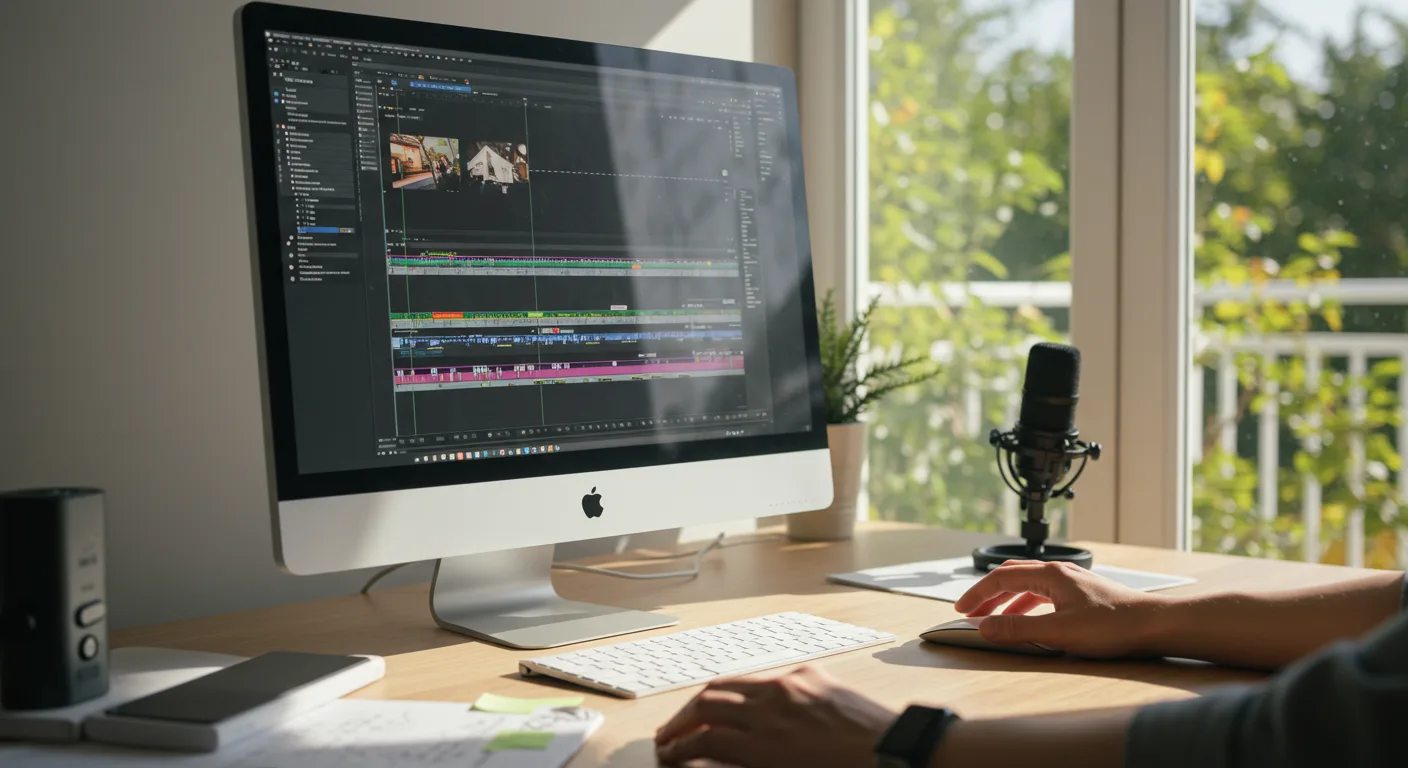
For marketing professionals, video content is no longer optional; it’s a necessity. And while there are many video editing platforms available, Final Cut Pro offers a powerful and intuitive environment for creating high-quality marketing videos. Are you ready to unlock its full potential and create videos that convert?
Key Takeaways
- Mastering Final Cut Pro’s organizational features, like Libraries and Keywords, can cut editing time by up to 25%.
- Using proxy media for 4K footage reduces rendering times by at least 50% on older machines.
- Implementing custom LUTs (Lookup Tables) ensures brand consistency across all video projects.
1. Project Setup: Foundation for Success
Before you even think about importing footage, proper project setup is paramount. In Final Cut Pro, start by creating a Library. Think of it as the central hub for all your media, events, and projects related to a specific marketing campaign. I recommend naming your Library something descriptive, like “Summer_Promo_2026.” Within the Library, create Events to further organize your footage – perhaps by shoot date or location. Next, create a new Project. Here, you’ll define your resolution and frame rate. For most online marketing videos, 1080p at 29.97fps is a safe bet.
Pro Tip: Store your Libraries on a fast external SSD for optimal performance. I use a Samsung T7 Shield and it makes a huge difference.
2. Importing and Organizing Your Media
Now it’s time to bring your footage into Final Cut Pro. Go to File > Import > Media and select the files you want to bring in. In the Import window, make sure to check “Create proxy media” – this will generate smaller, more manageable versions of your footage, which will significantly speed up the editing process, especially if you’re working with 4K or higher resolution video. Add Keywords to your clips during import. Keywords are descriptive tags that will help you quickly find specific shots later on. For instance, you might use keywords like “product demo,” “customer testimonial,” or “Atlanta skyline” if you filmed near the intersection of Peachtree and Lenox in Buckhead.
Common Mistake: Neglecting to create proxy media. Trust me, your computer will thank you.
3. Mastering the Timeline: Editing Essentials
The Timeline is where the magic happens. Start by dragging your clips from the Browser (where your imported media lives) down to the Timeline. Use the Blade tool (B) to cut clips, the Select tool (A) to move them around, and the Trim tool (T) to adjust their duration. Get familiar with the Magnetic Timeline – it automatically snaps clips together, which can be a huge time-saver. However, sometimes it can also be frustrating. If you need more precise control, hold down the tilde (~) key to temporarily disable the magnetic behavior.
Pro Tip: Use the Position tool (P) to lift clips out of the primary storyline for creating cutaways or adding graphics.
4. Color Correction and Grading: Making Your Videos Pop
Color correction and grading are essential for giving your videos a professional look. Final Cut Pro has built-in color tools that are surprisingly powerful. Start with the Color Board (Command-Shift-6). Use the Exposure, Saturation, and Color wheels to adjust the overall look of your clips. For more advanced color grading, consider using LUTs (Lookup Tables). LUTs are pre-designed color presets that can instantly transform the look of your footage. You can find free and paid LUTs online, or even create your own to maintain brand consistency across all your videos. I had a client last year who wanted all their videos to have a warm, cinematic feel. We created a custom LUT that we applied to every single clip, saving us hours of manual color correction.
Common Mistake: Overdoing the color grading. Subtle adjustments are often more effective than drastic changes.
5. Adding Text and Graphics: Reinforcing Your Message
Text and graphics can help reinforce your marketing message and make your videos more engaging. Final Cut Pro has a library of built-in titles and generators that you can use. To add text, go to Titles & Generators in the Browser and drag a title onto the Timeline. Customize the text, font, size, and color in the Inspector window. For graphics, you can import your own logos or create simple graphics using the built-in shape tools. Consider using Motion, Apple’s motion graphics software, for more complex animations. It integrates seamlessly with Final Cut Pro. In fact, for Atlanta marketing teams, mastering these tools is key to impactful campaigns.
Pro Tip: Keep your text and graphics clean and simple. Avoid using too many fonts or colors, as this can be distracting.
6. Audio Mixing and Mastering: Ensuring Clarity
Good audio is just as important as good video. Final Cut Pro has powerful audio mixing tools that allow you to balance the levels of your different audio tracks, add effects, and remove noise. Use the Audio Meters to monitor your levels and make sure that your audio isn’t clipping (distorting). Use the Noise Reduction effect to remove unwanted background noise. And don’t forget to add music! A well-chosen soundtrack can add emotion and energy to your videos. You can find royalty-free music on sites like Artlist or Epidemic Sound.
Common Mistake: Neglecting to properly mix your audio. Bad audio can ruin an otherwise great video.
7. Exporting Your Video: Optimizing for Different Platforms
Once you’re happy with your video, it’s time to export it. Go to File > Share > Master File. In the Share window, you can choose from a variety of export presets. For most online platforms, the “H.264” codec is a good choice. Adjust the resolution and frame rate as needed. For YouTube, 1080p at 29.97fps is usually sufficient. For Instagram, consider exporting a square version of your video. Pay attention to the bitrate. A higher bitrate will result in a higher quality video, but also a larger file size. According to a 2024 IAB report, video ad spend continues to climb, underscoring the need for high-quality, engaging content. Don’t skimp on video quality!
Pro Tip: Create custom export presets for different platforms to save time and ensure consistency.
8. Collaboration and Workflow: Working with a Team
If you’re working with a team, Final Cut Pro’s collaboration features can be a lifesaver. You can share Libraries with other editors, allowing them to access the same media and projects. You can also use Roles to assign different tasks to different team members. For instance, one person could be responsible for editing, while another is responsible for color correction. Final Cut Pro also integrates with Frame.io, a popular cloud-based collaboration platform that allows you to share your videos with clients for review and feedback.
Common Mistake: Not establishing a clear workflow. Define roles and responsibilities upfront to avoid confusion and delays.
9. Keyboard Shortcuts: Speeding Up Your Editing
Learning keyboard shortcuts is one of the best ways to speed up your editing workflow. Final Cut Pro has a ton of built-in shortcuts, and you can even create your own. Some of the most useful shortcuts include: Command-C (copy), Command-V (paste), Command-Z (undo), B (Blade tool), A (Select tool), and T (Trim tool). I recommend creating a cheat sheet of your favorite shortcuts and keeping it handy while you’re editing. We ran into this exact issue at my previous firm. Editors wasted so much time clicking through menus that could have been avoided with a few simple shortcuts.
Speaking of efficiency, understanding short-form video secrets can also dramatically improve your video marketing outcomes.
Pro Tip: Customize your keyboard shortcuts to match your editing style.
10. Staying Updated: Continuous Learning
Final Cut Pro is constantly evolving, with new features and improvements being added all the time. It’s important to stay updated on the latest changes so you can take advantage of them. Follow Apple’s Final Cut Pro website, read industry blogs, and watch tutorials on YouTube. Attend webinars and workshops to learn new techniques and connect with other editors. What I didn’t know when I started was how much there is to learn. But that’s part of the fun, isn’t it?
For further inspiration, check out this 2026 marketing creativity guide.
Common Mistake: Getting stuck in your ways and not learning new techniques.
Mastering Final Cut Pro is an ongoing journey, but by implementing these practices, you’ll be well on your way to creating professional-quality marketing videos that drive results. Remember to prioritize organization, optimize your workflow, and stay curious. Now go forth and create something amazing!
For small businesses looking for cost-effective solutions, video ads on a small budget are entirely achievable.
What are the best export settings for YouTube in Final Cut Pro?
For YouTube in 2026, exporting at 1080p (1920×1080) with a frame rate of 29.97fps using the H.264 codec is generally recommended. Aim for a bitrate of 8-12 Mbps for good quality without excessive file size.
How do I stabilize shaky footage in Final Cut Pro?
Select the clip in the Timeline, go to the Inspector window, and click on the “Video” tab. Under the “Stabilization” section, click the “Analyze” button. Final Cut Pro will automatically analyze and stabilize your footage.
Can I use Final Cut Pro on a Windows computer?
No, Final Cut Pro is exclusively available for macOS. You’ll need a Mac computer to run the software.
How do I create a lower third in Final Cut Pro?
Go to Titles & Generators in the Browser and choose a lower third template. Drag it onto the Timeline above your video clip. Customize the text, font, and colors in the Inspector window.
What is the best way to learn Final Cut Pro?
Experiment! Start with basic tutorials, then challenge yourself with small projects. Practice is key. Also, don’t hesitate to consult Apple’s Final Cut Pro documentation or online forums for help.





