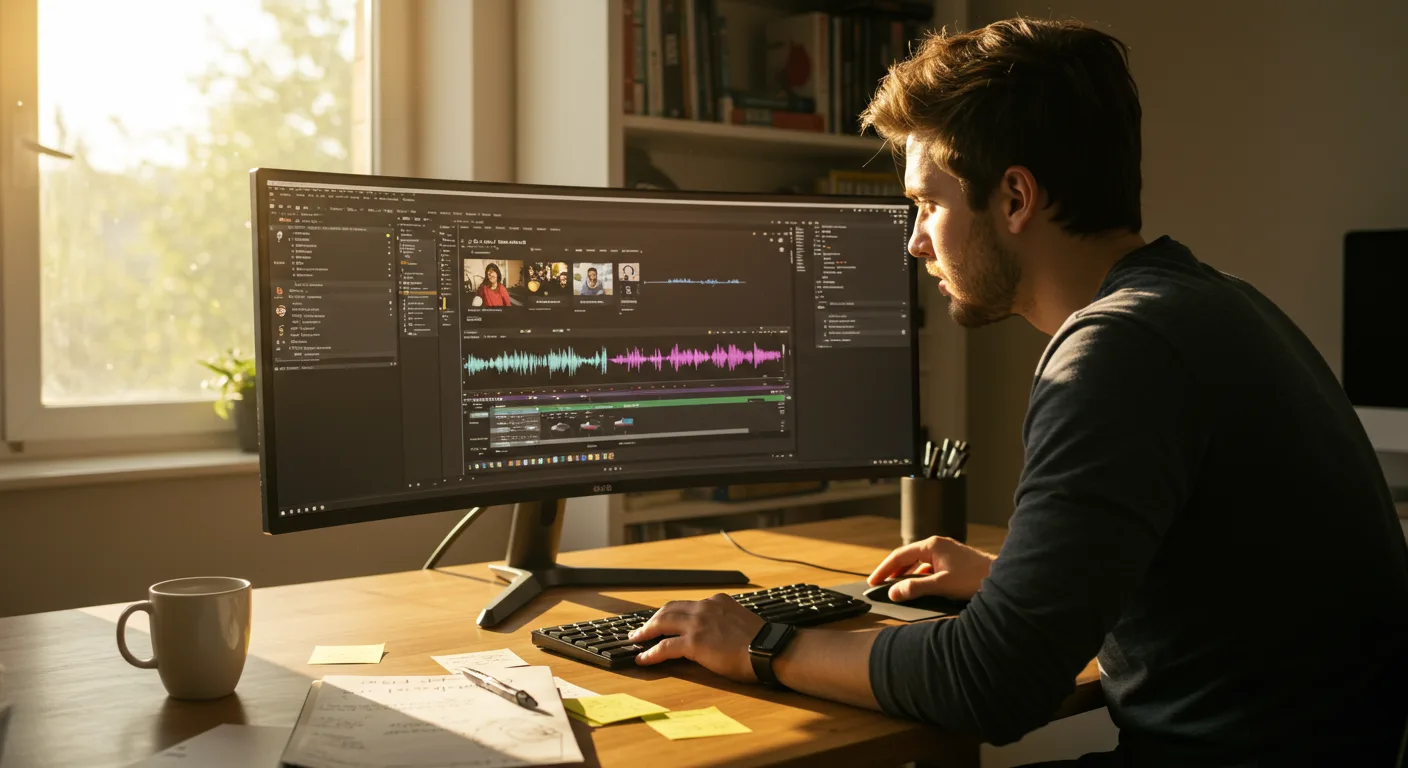
Unlocking Marketing Success with Adobe Premiere Pro
In the fast-paced world of digital marketing, video content reigns supreme. Effective video editing is no longer a luxury but a necessity. Adobe Premiere Pro stands as the industry-leading software, offering a robust suite of tools for crafting compelling visual narratives. But how can marketers truly leverage its power to drive results? Are you maximizing your video marketing ROI by fully utilizing Premiere Pro’s capabilities?
Mastering Adobe Premiere Pro’s Editing Workflow for Marketing Videos
A streamlined workflow is the cornerstone of efficient video editing. Industry leaders emphasize the importance of a well-organized project from the outset. Here’s how to optimize your Adobe Premiere Pro workflow:
- Project Setup: Create a dedicated project folder with subfolders for footage, audio, graphics, and exports. This simple step saves time and reduces clutter.
- Ingest and Organize: Use Premiere Pro’s Media Browser to import footage. Rename clips descriptively and apply metadata tags for easy searching.
- Rough Cut: Focus on assembling the narrative. Don’t worry about fine details at this stage. Use markers to highlight key moments.
- Fine Cut: Refine the timing, transitions, and pacing. This is where you sculpt the emotional impact of your video.
- Audio Mixing: Pay close attention to audio levels and clarity. Use Premiere Pro’s audio tools to remove noise, balance levels, and add music or sound effects.
- Color Correction and Grading: Enhance the visual appeal of your video with color correction and grading. Use Lumetri Color panel for precise adjustments.
- Export Settings: Choose the appropriate export settings for your target platform (e.g., YouTube, Facebook, website). Consider resolution, frame rate, and compression.
According to a 2025 study by HubSpot, marketers who prioritize video editing workflow efficiency see a 25% reduction in project completion time.
Many marketers overlook the power of Premiere Pro’s proxy workflow. When working with high-resolution footage (4K or higher), creating proxies allows you to edit smoothly on less powerful computers. Premiere Pro automatically switches back to the original footage during export.
Leveraging Premiere Pro’s Advanced Features for Marketing Campaigns
Beyond basic editing, Premiere Pro’s advanced features can elevate your marketing videos. Here are some key areas to explore:
- Motion Graphics Templates (MOGRTs): Create reusable animated titles, lower thirds, and other graphics. This ensures brand consistency and saves time. You can create your own or download them from Motion Array or Adobe Stock.
- Color Grading with Lumetri Color: The Lumetri Color panel offers professional-grade color correction and grading tools. Use it to create a consistent visual style and enhance the emotional impact of your videos.
- Audio Ducking: Automatically lower the volume of background music when someone is speaking. This ensures that the dialogue is clear and easy to understand.
- Multi-Camera Editing: Sync and edit footage from multiple cameras. This is ideal for interviews, events, and product demos.
- Virtual Reality (VR) Editing: Create immersive VR experiences for your audience. Premiere Pro supports 360-degree video editing and publishing.
Don’t be afraid to experiment with different effects and transitions. However, use them sparingly and purposefully. The goal is to enhance the message, not distract from it. Overusing effects can make your video look amateurish.
Integrating Premiere Pro with Other Adobe Creative Cloud Tools for Marketing
The real power of Adobe Premiere Pro in marketing lies in its integration with other Adobe Creative Cloud applications. This seamless workflow allows you to create stunning visuals and engaging content. Here’s how to leverage the synergy:
- Adobe After Effects: Create complex motion graphics, visual effects, and animations. Import After Effects compositions directly into Premiere Pro for seamless integration. For example, you can create an animated logo reveal in After Effects and use it as an intro for your Premiere Pro videos.
- Adobe Photoshop: Edit and enhance images for use in your videos. Create custom graphics, logos, and text overlays.
- Adobe Audition: Refine and master your audio. Remove noise, balance levels, and add effects. Audition’s spectral display allows you to visually identify and remove unwanted sounds.
- Adobe Illustrator: Create vector graphics and illustrations. Use them for logos, icons, and infographics in your videos.
A recent study by Adobe found that marketers who integrate Premiere Pro with other Creative Cloud apps experience a 40% increase in creative output.
Consider using Adobe Dynamic Link to seamlessly transfer assets between Premiere Pro and After Effects without rendering. This saves time and ensures that your edits are always up to date.
Optimizing Videos for Different Marketing Platforms Using Premiere Pro
Different platforms have different video specifications. Optimizing your videos for each platform is crucial for maximizing reach and engagement. Optimizing Premiere Pro for marketing means understanding these nuances:
- YouTube: Use a 16:9 aspect ratio, 1080p or 4K resolution, and an H.264 codec. Optimize your video title, description, and tags for search.
- Facebook: Use a 16:9 or square (1:1) aspect ratio, 720p or 1080p resolution, and an H.264 codec. Add captions for viewers who watch videos with the sound off.
- Instagram: Use a square (1:1) or vertical (9:16) aspect ratio, 1080×1080 or 1080×1920 resolution, and an H.264 codec. Keep your videos short and engaging.
- LinkedIn: Use a 16:9 aspect ratio, 720p or 1080p resolution, and an H.264 codec. Focus on professional and informative content.
- TikTok: Use a vertical (9:16) aspect ratio, 1080×1920 resolution, and an H.264 codec. Create short, entertaining, and trend-driven videos.
Premiere Pro’s export settings allow you to create presets for each platform. This simplifies the export process and ensures that your videos are always optimized. Always test your videos on different devices and browsers to ensure that they look and sound their best.
It’s also important to consider file size. Smaller file sizes load faster and consume less bandwidth. Use Premiere Pro’s compression settings to balance file size and video quality.
Measuring the ROI of Premiere Pro in Marketing Efforts
Ultimately, the success of your video marketing efforts depends on measuring the return on investment (ROI). Tracking key metrics and analyzing the data is essential to understand how Premiere Pro impacts marketing performance. Here are some important metrics to monitor:
- Video Views: Track the number of views on each platform. This indicates the reach of your videos.
- Engagement Rate: Measure the percentage of viewers who interact with your videos (e.g., likes, comments, shares). This indicates the level of audience interest.
- Click-Through Rate (CTR): Track the percentage of viewers who click on links in your video descriptions or annotations. This indicates the effectiveness of your calls to action.
- Conversion Rate: Measure the percentage of viewers who complete a desired action (e.g., sign up for a newsletter, purchase a product). This indicates the impact of your videos on business goals.
- Website Traffic: Monitor the traffic to your website from your videos. This indicates the effectiveness of your videos in driving website visitors.
Use Google Analytics and platform-specific analytics tools to track these metrics. Analyze the data to identify what’s working and what’s not. Adjust your video marketing strategy accordingly. Consider A/B testing different video elements (e.g., thumbnails, titles, calls to action) to optimize performance.
Remember to correlate video performance with overall marketing goals. Are your videos driving leads, increasing brand awareness, or generating sales? The answer to these questions will determine the true ROI of your video marketing efforts.
What are the best export settings for YouTube in Premiere Pro?
For YouTube, use the H.264 codec, a 16:9 aspect ratio, and a resolution of 1080p or 4K. Set the frame rate to match your source footage. Use a target bitrate of 10-12 Mbps for 1080p and 35-45 Mbps for 4K. Choose the “YouTube 1080p Full HD” or “YouTube 2160p 4K” preset as a starting point and adjust as needed.
How can I improve the audio quality of my videos in Premiere Pro?
Use Premiere Pro’s audio tools to remove noise, balance levels, and add effects. The Essential Sound panel offers presets for dialogue, music, SFX, and ambience. Use the Parametric Equalizer to fine-tune the frequency response. Consider using Adobe Audition for more advanced audio editing.
What is the best way to create motion graphics for my marketing videos?
You can create motion graphics directly in Premiere Pro using titles and effects. For more complex animations, use Adobe After Effects and import the compositions into Premiere Pro. You can also use Motion Graphics Templates (MOGRTs) from Adobe Stock or other sources.
How do I add captions to my videos in Premiere Pro?
Premiere Pro offers several ways to add captions. You can manually type captions, import a caption file (e.g., SRT), or use the speech-to-text feature to automatically generate captions. Ensure that your captions are accurate and synchronized with the audio.
What are some common mistakes to avoid when editing marketing videos in Premiere Pro?
Avoid using too many transitions or effects, neglecting audio quality, failing to optimize for different platforms, and not having a clear call to action. Ensure that your video is visually appealing, engaging, and relevant to your target audience.
By mastering Adobe Premiere Pro, marketers can create high-quality videos that drive engagement, generate leads, and boost brand awareness. A well-defined workflow, strategic use of advanced features, seamless integration with other Adobe tools, and platform-specific optimization are essential for success. Are you ready to take your video marketing to the next level?




