 By Amanda Patel
Mastering tutorials on video editing software is no longer optional for marketing professionals; it’s a non-negotiable skill that directly impacts campaign performance and brand perception. With video dominating content consumption, your ability to produce compelling, high-quality visuals can make or break your marketing efforts. Are you ready to transform your raw footage into conversion-driving narratives?
Key Takeaways
- Select video editing software based on your team’s existing skill set and project complexity, prioritizing tools like Adobe Premiere Pro for advanced needs or DaVinci Resolve for budget-conscious but powerful editing.
- Implement a structured editing workflow starting with media organization and ending with final export settings tailored for specific platforms like Instagram Reels or YouTube, ensuring consistent quality and efficiency.
- Utilize advanced editing features such as keyframing for dynamic animations and color grading for professional visual appeal, directly impacting audience engagement and brand recognition.
- Integrate AI-powered features for tasks like automatic captioning and object removal to significantly reduce editing time, allowing your marketing team to focus on creative storytelling.
- Export videos using platform-specific presets (e.g., H.264 codec for web, 1080p resolution) and conduct thorough final reviews to prevent common errors that diminish video quality and marketing effectiveness.
As a marketing agency owner, I’ve seen firsthand how powerful video can be. A few years ago, we managed a small e-commerce brand specializing in handmade jewelry. Their social media presence was flat, relying heavily on static product shots. I convinced them to invest in video, and we started by creating short, artisanal process videos. Within six months, their Instagram engagement rate jumped by 40%, and their sales attributed to social media increased by a staggering 25% – all because we learned to tell their story visually. This wasn’t about fancy cameras; it was about understanding how to edit effectively.
1. Choose the Right Software for Your Marketing Needs
Selecting your video editing software is like choosing the right tool for a carpentry project: a hammer won’t do for intricate carving. For marketing, your choice hinges on your team’s existing expertise, budget, and the complexity of your typical projects. We often recommend a tiered approach.
For beginners or teams with limited budgets, CapCut (often used on mobile, but its desktop version is surprisingly robust) or DaVinci Resolve (free, professional-grade) are excellent starting points. CapCut offers incredibly intuitive controls perfect for quick social media edits, while DaVinci Resolve, though having a steeper learning curve, provides Hollywood-level capabilities in its free version, including advanced color correction and audio post-production. According to a Statista report on marketing software usage, about 35% of small businesses now leverage free or open-source video editing tools to manage content creation costs.
For more established marketing teams requiring extensive integrations, collaborative features, and industry-standard workflows, Adobe Premiere Pro (adobe.com/products/premiere.html) is the undisputed champion. It integrates seamlessly with other Adobe Creative Cloud applications like After Effects for motion graphics and Audition for audio, making it ideal for comprehensive campaigns. We primarily use Premiere Pro at my agency because its flexibility allows us to tackle everything from short Instagram Reels to long-form promotional documentaries. The subscription model might seem like a barrier, but the sheer power and ecosystem integration make it a sound investment for serious marketing efforts.
Pro Tip: Don’t Overcommit Early
Start with a simpler tool if you’re new. Mastering CapCut’s basics will give you a solid foundation in editing principles (timelines, cuts, transitions) that are transferable to more complex software. You don’t need to jump straight into Premiere Pro’s multi-cam editing if you’re just making explainer videos. Build confidence first.
Common Mistake: Ignoring System Requirements
Many marketers get excited about a software’s features but forget their hardware. Running Premiere Pro on an old laptop with 8GB of RAM is a recipe for frustration. Always check the minimum system requirements before downloading, especially for tools like DaVinci Resolve, which can be quite resource-intensive. You need a dedicated GPU and at least 16GB of RAM for a smooth experience with professional software.
2. Understand the Interface and Basic Workflow
Once you’ve chosen your weapon, the first step is to get comfortable with its environment. While each software has its quirks, the fundamental layout is surprisingly consistent. I’ll describe a generic interface that applies to most professional tools, focusing on Premiere Pro as our example.
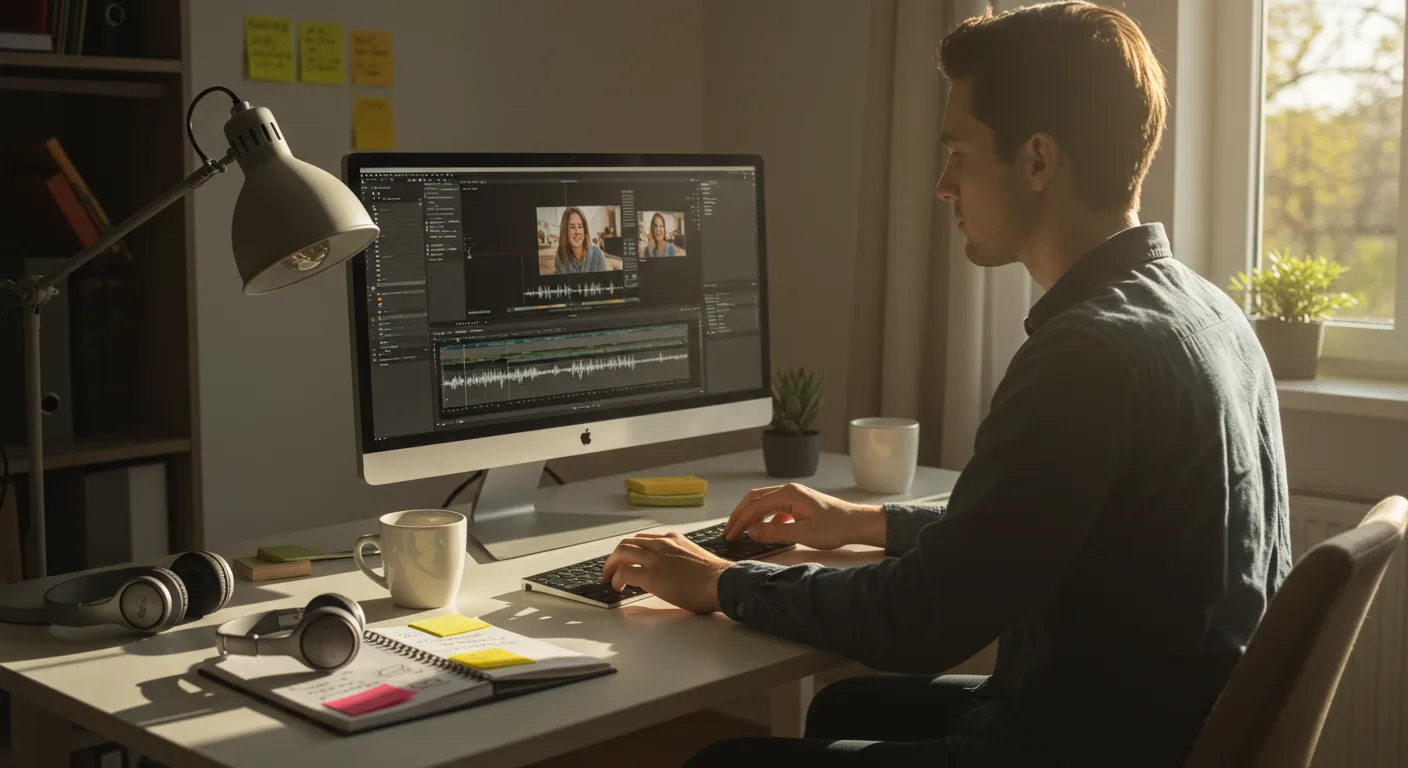
When you open Premiere Pro, you’ll typically see several panels. The Project Panel (often bottom-left) is where you import and organize all your media – video clips, audio, images, graphics. The Source Monitor (top-left) is for previewing individual clips before adding them to your sequence. The Program Monitor (top-right) shows your main timeline’s output. And finally, the star of the show, the Timeline Panel (bottom-center), is where you assemble, cut, and arrange your clips. This is where the magic happens.
Let’s set up a project for a new product launch video.
- Create a New Project: In Premiere Pro, go to File > New > Project. Name it something descriptive, like “ProductX_Launch_Campaign_Q3_2026”. Choose a location to save your project file (I always recommend a dedicated project folder on an external SSD for speed and organization).
- Import Media: Drag and drop your video footage, product photos, background music, and voiceover audio directly into the Project Panel. Alternatively, go to File > Import.
- Organize with Bins: Create “bins” (folders) within the Project Panel to keep things tidy. Right-click in the Project Panel, select New Bin, and create bins like “Footage,” “Audio,” “Graphics,” “Music,” etc. Drag your imported assets into their respective bins. Trust me, organized bins save countless hours later, especially on larger projects.
Pro Tip: Keyboard Shortcuts are Your Best Friend
Seriously, learn them. For Premiere Pro, C for the Razor tool (cut), V for the Selection tool, Spacebar to play/pause, and J/K/L for shuttle control (reverse/pause/forward) will dramatically speed up your editing. Every professional editor I know relies heavily on shortcuts. It becomes muscle memory, allowing you to focus on the creative flow rather than hunting for icons.
Common Mistake: Not Saving Regularly
This is a classic. Nothing is worse than losing an hour’s worth of intricate edits because your software crashed and you hadn’t saved. Make it a habit: Ctrl+S (Windows) or Cmd+S (Mac) every few minutes, especially after a complex series of edits. Many programs have auto-save features, but manual saving provides an extra layer of security.
3. Mastering Basic Editing Techniques: Cuts, Transitions, and Audio
With your media imported and organized, it’s time to build your narrative. This is where you learn the fundamentals of storytelling through editing.
- Rough Cut Assembly: Drag your primary video clips from the Project Panel (or Source Monitor) onto the Timeline. Arrange them in a logical sequence. Don’t worry about perfection yet; this is about getting the story flow down. If you’re creating an ad for a new smart home device, you might start with a “problem” shot, then “solution” shots, and finally “benefit” shots.
- Trimming and Cutting: Use the Razor Tool (C) to split clips. If a clip is too long, select the Selection Tool (V), hover over the edge of the clip on the timeline, and drag to trim. Remove unwanted sections by selecting them and pressing Delete.
- Adding Transitions: Transitions smooth the jump between clips. Go to the Effects Panel (typically next to the Project Panel). Expand “Video Transitions” and try a basic Cross Dissolve. Drag it between two clips on the timeline. Adjust its duration by dragging its edges. For marketing, I lean heavily on quick cuts and subtle dissolves. Overuse of flashy transitions (star wipes, page turns) screams amateur hour.
- Adjusting Audio Levels: Audio is half the battle. Select an audio clip on the timeline. In the Effect Controls Panel (usually grouped with the Source Monitor), find “Volume” and adjust the level. Aim for your dialogue to be around -6dB to -12dB for web content, with music lower, around -20dB to -30dB. You can also right-click an audio clip and select Audio Gain to quickly normalize levels.
- Adding Music and Voiceovers: Drag your chosen background music track onto a separate audio track below your main video. Ensure the music complements your message and doesn’t overpower the voiceover or natural sound. Fade music in and out using keyframe volume adjustments (we’ll cover keyframes next).
Pro Tip: The J-Cut and L-Cut
These are professional techniques that make your videos feel more polished. A J-cut is when the audio from the next clip starts playing before the video from the next clip appears. An L-cut is when the audio from the current clip continues playing even after the video has cut to the next clip. These subtle overlaps create a much smoother, more engaging flow than hard cuts for both audio and video. I use them constantly for interview segments or product demonstrations to keep the viewer’s attention.
Common Mistake: Bad Audio
Poor audio quality is often cited as the number one reason viewers click away from videos, even more than poor video quality. Invest in a decent microphone for voiceovers and always monitor your audio levels during recording and editing. Distorted or inaudible audio instantly undermines your brand’s credibility. I once had a client insist on using raw smartphone audio for a testimonial video, and despite my warnings, they pushed it live. The feedback was brutal – people couldn’t understand the speaker, and it damaged their reputation. We had to pull it and re-record.
4. Enhancing Your Video with Visuals and Graphics
Beyond basic cuts, adding graphics, text, and visual effects elevates your marketing videos from mundane to memorable. This is where your brand identity truly shines.
- Adding Text and Titles: Most software includes built-in text tools. In Premiere Pro, select the Type Tool (T) from the toolbar, click on the Program Monitor, and type your text. Use the Essential Graphics Panel (Window > Essential Graphics) to customize fonts, colors, sizes, and add basic animations. For marketing, keep your text legible, on-brand, and concise. Think lower-thirds for speaker names or bold call-to-actions.
- Basic Color Correction: Don’t just settle for raw camera footage. Go to the Lumetri Color Panel (Window > Lumetri Color) in Premiere Pro. Start with the “Basic Correction” tab: adjust Exposure, Contrast, Highlights, Shadows, and Saturation. The goal isn’t to drastically change the look, but to make your footage look natural, vibrant, and consistent across all clips. A consistent color palette reinforces brand identity.
- Applying Visual Effects: The Effects Panel also houses video effects. Be selective. A subtle blur for background elements or a slight sharpen can be effective. Avoid gratuitous lens flares or shaky cam effects unless they serve a very specific creative purpose. Less is often more in marketing video.
- Keyframing for Animation: This is a powerful technique. In the Effect Controls Panel, you’ll see a stopwatch icon next to many properties (e.g., Position, Scale, Opacity, Volume). Clicking it enables keyframing. Set a keyframe at one point in time, change the property’s value, and set another keyframe later. The software will animate the change smoothly between those two points. Use keyframes to animate text sliding in, logos appearing, or even subtly zooming into a product detail. For instance, to make a logo fade in, set an opacity keyframe at 0% at the start, then another at 100% a second later.
Pro Tip: Utilize Motion Graphics Templates
If you’re not an After Effects wizard, many video editing software now integrate with or offer libraries of motion graphics templates (MOGRTs in Premiere Pro). These are pre-animated titles, lower thirds, and intro/outro sequences that you can easily customize with your brand colors and text. They save immense time and give your videos a professional sheen without needing advanced animation skills. Look for templates that align with your brand’s aesthetic – clean and corporate, or playful and dynamic.
Common Mistake: Inconsistent Branding
Your video should look like it belongs to your brand. Use consistent fonts, colors (hex codes!), and logo placement. Don’t use five different title styles in one video. This inconsistency dilutes your brand message and makes your content look disjointed. We enforce strict brand guidelines for all video assets, ensuring that every piece of content, from a short ad to a full-length case study, feels cohesive and professional.
5. Incorporating AI-Powered Tools for Efficiency (2026 Features)
The year 2026 has brought incredible advancements in AI within video editing software, significantly boosting efficiency for marketing teams. These aren’t just gimmicks; they are genuine time-savers.
- Automatic Transcription and Captioning: Most major editing suites now offer integrated AI for accurate transcription. In Premiere Pro, go to Window > Text > Transcribe. After transcription, you can easily generate captions. This is invaluable for accessibility and for viewers watching without sound (a huge percentage on social media). According to a 2026 IAB report on digital video trends, 85% of social media video is consumed without sound, making captions essential for engagement.
- AI-Powered Object Removal/Replacement: Tools like DaVinci Resolve’s Magic Mask or Premiere Pro’s new “Content-Aware Fill for Video” (an evolution of the Photoshop feature) allow you to quickly remove unwanted objects from your footage. Did a stray microphone boom appear in the shot? A person walk into the background of your product demo? These AI features can intelligently paint them out, saving you hours of manual masking.
- Smart Reframe for Social Media: Premiere Pro’s “Auto Reframe” (under the Effect Controls panel for your sequence) is a godsend for social media marketers. It analyzes your video’s action and automatically reframes it for different aspect ratios (e.g., horizontal 16:9 for YouTube, square 1:1 for Instagram feed, vertical 9:16 for Reels/TikTok). This feature ensures your main subject stays in frame across all platforms, eliminating tedious manual adjustments.
- AI Audio Enhancement: Features like Adobe Audition’s “Remix” (which intelligently shortens music tracks to fit a specific duration) or noise reduction tools powered by AI can clean up noisy audio or create perfect musical loops with minimal effort. This is particularly useful for quickly cutting down stock music tracks to fit short ad spots.
Pro Tip: Leverage AI for First Passes
Think of AI as your highly efficient assistant. Let it handle the grunt work – transcribing, initial color balancing, re-framing. Then, step in with your human creativity and refine. Don’t rely on it for creative decisions, but absolutely use it to accelerate the technical tasks. This frees up your team to focus on the story and the message, which is where real marketing impact comes from.
Common Mistake: Over-reliance on AI without Human Oversight
AI is powerful, but it’s not perfect. Auto-generated captions can have hilarious (and sometimes offensive) errors. AI object removal can leave artifacts if not carefully reviewed. Always double-check, proofread, and manually refine AI’s output. A glossy, AI-generated video with a glaring caption error undermines professionalism faster than a poorly shot one. We typically have a human editor review all AI-generated captions and effects before final delivery, catching those embarrassing mistakes.
6. Exporting and Optimizing for Different Platforms
The final step is crucial: getting your masterpiece out into the world.
Export settings are not one-size-fits-all; they depend entirely on where your video will live.
- Access Export Settings: In Premiere Pro, go to File > Export > Media (or Ctrl+M / Cmd+M). This opens the Export Settings dialog box.
- Choose Your Format and Preset:
- Format: For web and social media, H.264 is almost always the correct choice. It offers excellent quality at manageable file sizes.
- Presets: Premiere Pro offers a vast array of presets. For YouTube, choose “YouTube 1080p Full HD” or “YouTube 4K” if your footage supports it. For Instagram, look for “Match Source – Medium Bitrate” and then manually adjust frame size for square (1080×1080) or vertical (1080×1920) if Auto Reframe wasn’t used. For Facebook, similar H.264 presets work well.
- Adjust Resolution and Frame Rate: Match your source footage’s frame rate (e.g., 29.97fps or 24fps). For resolution, 1920×1080 (1080p) is standard for most platforms. For vertical video, it’s 1080×1920.
- Bitrate Settings: This is critical for quality vs. file size. For H.264, use VBR, 1 Pass. For 1080p YouTube, a target bitrate of 10-12 Mbps is usually sufficient. For 4K, aim for 35-45 Mbps. Higher bitrates mean better quality but larger files. Experiment to find the sweet spot for your needs.
- Export Audio: Ensure your audio is exported at 48kHz, Stereo, AAC format.
- Queue vs. Export: For single videos, click Export. If you have multiple versions (YouTube, Instagram, Facebook), click Queue to send them to Adobe Media Encoder, allowing you to batch export and continue working in Premiere Pro.
Pro Tip: Platform-Specific Export Settings
Always consult the latest guidelines from each platform. Instagram’s Business Help Center, for instance, has very specific recommendations for aspect ratios and file sizes for Reels, Stories, and Feed posts. Ignoring these can lead to compression artifacts, poor quality, or even rejection of your content. My team keeps a cheat sheet of current export settings pinned in our project management software, updating it quarterly as platform specs evolve.
Common Mistake: Exporting with Default Settings
Many beginners simply hit “Export” without checking the settings. This often results in massive file sizes, poor quality due to incorrect compression, or videos that don’t fit the platform’s aspect ratio. Always customize your export settings for the intended destination. A visually stunning video can look terrible if exported improperly, nullifying all your hard work.
Learning tutorials on video editing software is an ongoing journey, not a destination. The tools evolve, new features emerge, and creative trends shift. Embrace the continuous learning process, experiment with different techniques, and always prioritize storytelling over flashy effects. Your audience will thank you, and your marketing results will reflect it.
What’s the best video editing software for marketing beginners on a tight budget?
For beginners on a tight budget, DaVinci Resolve is the best option. It’s completely free, offers professional-grade features for editing, color correction, visual effects, and audio post-production, and has an extensive community for learning, though its learning curve is steeper than simpler tools. CapCut Desktop is another excellent free choice for quick, mobile-first content.
How important is color correction for marketing videos?
Color correction is extremely important for marketing videos. It ensures your brand’s visual consistency, makes your products look appealing, and sets the mood or tone of your message. Inconsistent or poorly corrected colors can make your brand appear unprofessional and detract from the overall message, impacting viewer perception and engagement.
Should I use AI features in my video editing workflow?
Absolutely, you should use AI features, especially in 2026. AI tools for automatic transcription, smart reframe for social media, and object removal significantly accelerate repetitive and technical tasks. This allows your marketing team to focus more on creative storytelling and strategic messaging, enhancing overall efficiency and content output, but always review AI’s output for accuracy.
What are the critical export settings for social media videos?
For social media, critical export settings include using the H.264 codec, matching your source frame rate, and selecting the correct resolution and aspect ratio (e.g., 1080×1920 for vertical Reels/TikTok, 1080×1080 for square Instagram feed). Aim for a target bitrate of 10-12 Mbps for 1080p, and always consult the specific platform’s latest guidelines to avoid quality degradation or upload issues.
How can I make my marketing videos more engaging without complex effects?
To make marketing videos more engaging without complex effects, focus on strong storytelling, clear audio, and dynamic pacing. Utilize techniques like J-cuts and L-cuts for smoother transitions, incorporate well-designed on-screen text for key messages, and ensure consistent color grading. A compelling narrative with crisp visuals and sound will always outperform flashy effects without substance.


