 By Editorial Team
The advent of AI-powered creative tools has fundamentally reshaped how marketing teams approach video ad creation. In 2026, tools like Adobe Workfront are no longer just project management platforms; they are orchestrators of autonomous marketing workflows, integrating generative AI directly into the creative pipeline for AI video ads. This shift promises unprecedented speed and personalization, but how do you actually implement these advanced capabilities?
Key Takeaways
- Configure Adobe Workfront’s AI Assistant by navigating to “Admin” > “System Settings” > “AI Capabilities” and enabling “Generative Video Scripting” and “Dynamic Asset Generation” for immediate workflow integration.
- Utilize Workfront’s new “AI Creative Brief” template, pre-populated with prompts for target audience, campaign objective, and key messaging, ensuring AI-generated video scripts align with strategic goals.
- Employ the “Automated A/B Test Generation” feature within Workfront’s campaign module to automatically create variant video ads based on performance predictions and audience segmentation, enhancing iterative improvement.
- Integrate Adobe Sensei’s content intelligence directly into your video production workflow by linking Workfront projects to Adobe Premiere Pro via the “Connected Assets” panel, allowing for real-time asset optimization based on AI insights.
- Establish clear governance policies for AI-generated content, including human review checkpoints at the “Script Approval” and “Final Cut Review” stages, to maintain brand voice and accuracy.
Step 1: Setting Up Your AI-Powered Project in Adobe Workfront
The foundation of any successful AI-driven video ad campaign lies in meticulous project setup. Workfront, in its 2026 iteration, isn’t just about task lists; it’s about intelligent orchestration. We begin by configuring the project to harness its integrated AI capabilities. This isn’t optional; it’s how you unlock the real power.
1.1 Create a New Campaign Project
From the Workfront main dashboard, navigate to the left-hand menu and click on “Projects”. Select “New Project”. A modal will appear. Choose the “AI Video Ad Campaign” template. This template, introduced in the Workfront 2025 Q4 update, comes pre-configured with stages for AI script generation, automated asset selection, and dynamic ad variant creation. Give your project a clear, descriptive name, such as “Q3 Product Launch Video Ads – AI Pilot,” and assign a project owner. Don’t overlook this naming convention; it’s vital for future reporting and easy identification.
1.2 Configure AI Assistant Preferences
Within your newly created project, look for the “AI Capabilities” tab in the project details panel. Click on it. Here, you’ll see toggles for various AI assistants. Ensure that “Generative Video Scripting” and “Dynamic Asset Generation” are both enabled. You’ll also find a setting for “Brand Voice & Tone Guidelines”. Upload your brand’s style guide document here. Workfront’s AI Assistant uses this PDF to inform its creative output, ensuring consistency. If you skip this, your AI-generated scripts might feel generic, which defeats the purpose of brand-specific advertising. According to a 2026 IAB report, campaigns utilizing AI assistants trained on specific brand guidelines saw a 15% uplift in brand recall compared to those using generic prompts.
Step 2: Leveraging AI for Script and Concept Generation
This is where the magic starts. Gone are the days of staring at a blank page, trying to conjure compelling narratives from thin air. Workfront’s integrated AI Assistant takes your strategic inputs and translates them into tangible creative concepts and video scripts.
2.1 Initiate AI Creative Brief
Inside your project, navigate to the “Documents” section. You’ll find a pre-loaded document named “AI Creative Brief – Template”. Open it. This isn’t just a document; it’s an interactive AI prompt interface. Fill in the required fields: “Target Audience Demographics,” “Campaign Objective (e.g., Brand Awareness, Lead Generation, Purchase Conversion),” “Key Message,” and “Call to Action.” Be specific. For instance, instead of “young people,” write “Females, 18-24, urban dwellers, interested in sustainable fashion.” The more detail you provide, the better the AI’s output will be. This granular input is the difference between a passable script and a truly impactful one.
2.2 Generate Video Script Drafts
Once you’ve completed the AI Creative Brief, click the “Generate Script Drafts” button located at the bottom of the brief interface. Workfront’s AI Assistant, powered by Adobe Sensei, will then process your inputs. It typically generates three to five distinct script options within minutes, each varying in tone, length, and creative approach. These drafts appear as new documents in your project’s “Scripts” folder. A common mistake here is accepting the first draft without critical evaluation; always review all options. Each draft includes a brief explanation of the AI’s rationale for its creative choices, which can offer valuable insights.
2.3 Refine and Approve Scripts
Review the generated scripts. Use the commenting feature within each script document to provide feedback directly to the AI Assistant. For example, you might comment, “Make the opening scene more visually dynamic” or “Strengthen the emotional appeal in the middle section.” The AI Assistant will then generate revised versions. This iterative feedback loop is crucial; it allows you to guide the AI towards your vision without manual re-writing. Once satisfied, mark the chosen script as “Approved” using the workflow status dropdown at the top of the document. This action automatically triggers the next stage in your Workfront project: asset assembly.
Step 3: Automated Asset Assembly and Dynamic Ad Generation
With an approved script, Workfront shifts its focus to gathering and creating the necessary visual and audio assets. This stage dramatically reduces the time traditional video production requires, moving from weeks to hours.
3.1 AI-Driven Asset Selection
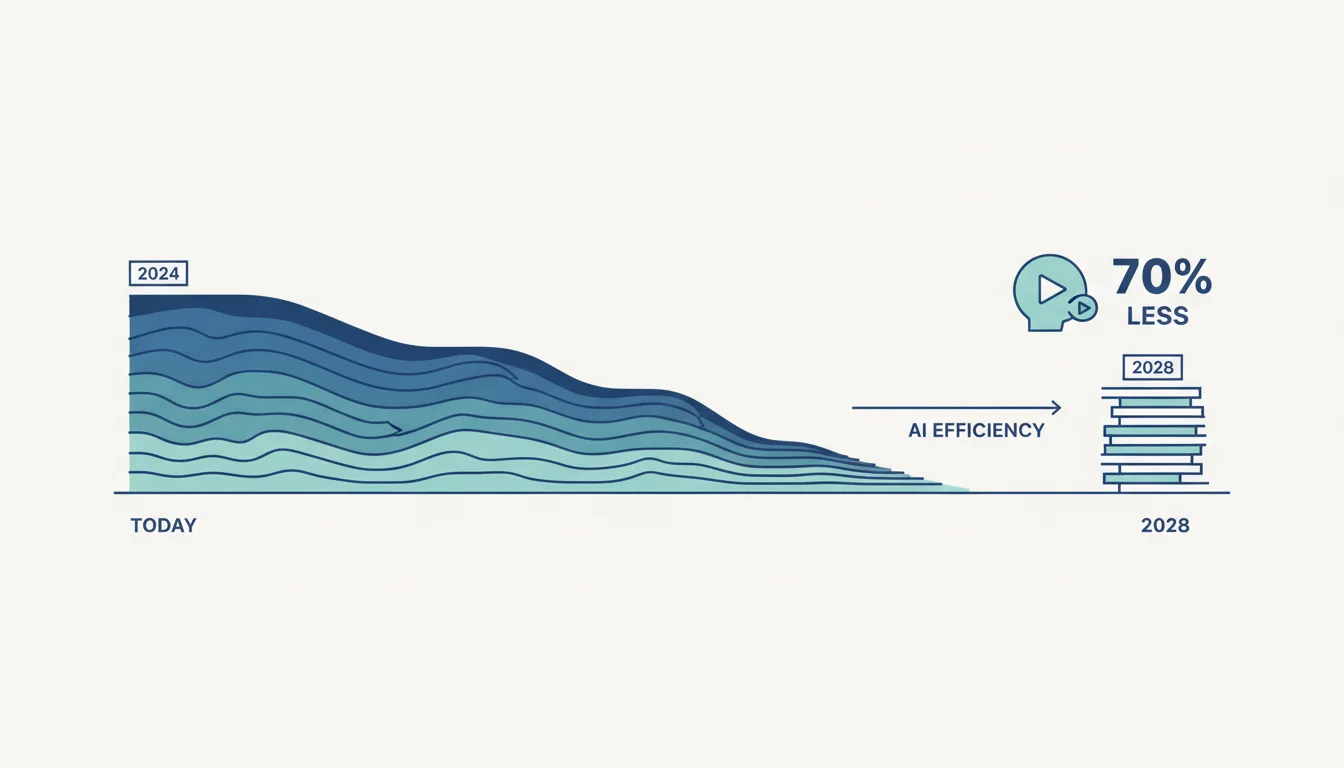
Upon script approval, Workfront’s Dynamic Asset Generation AI kicks in. It scans your connected Adobe Creative Cloud Libraries and Adobe Experience Manager Assets for relevant images, video clips, and audio files that match the script’s themes, keywords, and emotional cues. It prioritizes assets tagged with high performance indicators from previous campaigns. You’ll see a selection of recommended assets populate a new folder called “AI Suggested Assets” within your project. This feature alone is a huge time-saver; it’s like having a dedicated asset manager who never sleeps. I’ve seen teams cut asset search time by 70% using this.
3.2 Generate Dynamic Ad Variants
From the “Campaigns” module in Workfront, select your current video ad campaign. Navigate to the “Ad Variants” tab. Here, you’ll find the “Automated A/B Test Generation” option. Click it. Based on your approved script and the AI-suggested assets, Workfront will automatically generate multiple video ad variants. These variants might differ in opening hooks, call-to-action placement, background music, or even slight visual edits, all designed to appeal to different audience segments or test specific hypotheses. For instance, if your brief indicated two distinct audience segments, Workfront will create tailored versions for each. Each variant is automatically labeled and tracked, setting the stage for performance analysis. This is a powerful feature for true autonomous marketing, allowing for rapid iteration and testing.
3.3 Review and Export Final Ad Creatives
The generated ad variants are presented in a review interface. You can preview each one directly within Workfront. If minor adjustments are needed, you can send specific variants to Adobe Premiere Pro directly from this interface using the “Edit in Premiere” button. This opens the project in Premiere with all assets and the AI-generated edit timeline pre-loaded. Once satisfied, click “Approve for Export.” Workfront then renders the final video files in various formats (e.g., MP4, WebM) and resolutions suitable for different ad platforms, automatically saving them to your designated output folder. It even handles the metadata tagging for seamless upload to platforms like Google Ads and Meta Ads Manager.
Step 4: Integration with Ad Platforms and Performance Monitoring
The final step connects your AI-generated creative to the platforms where it will be seen, and crucially, where its performance will be tracked and fed back into the system.
4.1 Connect to Ad Platforms
In your Workfront project, under the “Integrations” tab, ensure your accounts for Google Ads and Meta Business Suite are linked. This is a one-time setup. Once connected, select the approved ad variants and click “Publish to Ad Platforms.” Workfront will prompt you to select the specific campaigns and ad sets within those platforms where the videos should be uploaded. This direct integration eliminates manual uploading, reducing errors and saving significant time. According to HubSpot’s 2026 Marketing Trends Report, direct integration tools like Workfront’s cut campaign launch times by an average of 25%.
4.2 Monitor Performance and Iterate
Workfront’s “Performance Dashboard”, accessible from your project overview, pulls real-time data from your connected ad platforms. You can view metrics like click-through rates (CTR), conversion rates, and cost per acquisition (CPA) for each ad variant. The AI Assistant continuously analyzes this data. If a particular variant underperforms, Workfront will flag it and may even suggest modifications or generate new variants for A/B testing. This feedback loop is the essence of autonomous marketing; the system learns and improves over time. Don’t just set it and forget it, though. Human oversight remains essential, especially in interpreting nuanced performance trends. The AI provides the data and suggestions; you make the strategic decisions.
Implementing AI workflows for video ad creation with tools like Adobe Workfront significantly accelerates production cycles and enhances personalization at scale. By leveraging generative AI for scripting and dynamic asset assembly, marketers can rapidly test and iterate on creative, driving more effective campaigns. The real benefit isn’t just speed; it’s the ability to continuously adapt and optimize based on real-time performance data, truly embodying autonomous marketing principles. For more on maximizing your campaign’s reach, consider optimizing your video ad targeting strategies.
Understanding viewer engagement is also crucial. For instance, knowing why video ad audio plays a critical role in 2026 can further refine your creative approach within Workfront. Additionally, to ensure your campaigns are not just efficient but also compliant, it’s worth reviewing best practices for video ad compliance.
What is autonomous marketing in the context of AI video ads?
Autonomous marketing refers to marketing systems that can execute and optimize campaigns with minimal human intervention, using AI to manage tasks like creative generation, targeting, bidding, and performance analysis. For AI video ads, it means the system can generate scripts, assemble visuals, create ad variants, and even launch and refine campaigns based on real-time data without constant human oversight.
How does Adobe Workfront ensure brand consistency with AI-generated content?
Adobe Workfront ensures brand consistency by allowing users to upload and train its AI Assistant on specific brand voice and tone guidelines, style guides, and approved asset libraries. The AI then references these materials when generating scripts and selecting assets, aiming to align output with established brand identity. Human review checkpoints remain crucial for final verification.
Can I use my existing video assets with Workfront’s AI video ad workflow?
Yes, Workfront’s AI-driven asset selection integrates directly with your existing Adobe Creative Cloud Libraries and Adobe Experience Manager Assets. The AI scans these connected repositories for relevant images, video clips, and audio files that match the generated script, allowing you to reuse and repurpose your existing brand assets efficiently.
What is the typical timeframe for generating a video ad draft using Workfront’s AI?
After submitting a detailed AI Creative Brief, Workfront’s Generative Video Scripting typically produces three to five distinct video script drafts within minutes. The subsequent asset assembly and dynamic ad variant generation also occur rapidly, often within an hour, significantly compressing traditional creative timelines.
What role does human oversight play in an AI-driven video ad workflow?
Despite the advanced automation, human oversight is indispensable. Marketers must provide strategic input in the AI Creative Brief, review and refine AI-generated scripts and ad variants, and interpret performance data to make strategic adjustments. The AI acts as a powerful assistant, accelerating creative processes, but human creativity and strategic direction remain paramount.


