 By Editorial Team
The intersection of AI and freelance creatives is no longer a futuristic fantasy; it’s the present. But how do you, as a freelancer, harness this power without being replaced by it? We’ll walk you through using VidGen Pro’s 2026 AI Suite to create compelling marketing videos, covering everything from script generation to final render. Are you ready to future-proof your freelance career?
Key Takeaways
- VidGen Pro’s AI Script Generator can create marketing video scripts in under 5 minutes based on a simple product description and target audience.
- The “Visual Style Transfer” feature lets you apply the visual style of any existing video to your new project, ensuring brand consistency.
- The “AI Voiceover” tool offers realistic voiceovers in over 50 languages, reducing reliance on expensive voice actors.
Step 1: Accessing VidGen Pro and Setting Up Your Project
First, you’ll need a VidGen Pro account. If you don’t have one, head over to VidGen Pro and sign up for a free trial. I recommend the “Freelancer Plus” plan for its expanded AI credits – trust me, you’ll use them. Once you’re logged in, you’ll see the main dashboard. It’s been redesigned since 2024, sporting a cleaner interface with a dark mode option (thank goodness!).
Creating a New Project
- Click the large, blue “+ New Project” button in the top-right corner.
- A modal window will pop up asking for your project details. Enter a descriptive name (e.g., “Acme Corp – Summer Sale Ad”).
- Select your aspect ratio. For YouTube ads, 16:9 is still the standard. For TikTok or Instagram Reels, go with 9:16.
- Choose your preferred resolution. 1080p is usually sufficient, but 4K is an option if you have the bandwidth and want that extra crispness.
- Click “Create Project.”
Pro Tip: Keep your project names consistent. I use a naming convention of “Client Name – Project Type – Date” to stay organized. Makes life much easier when you’re juggling multiple clients.
Step 2: Generating a Script with AI Script Generator
This is where the magic happens. VidGen Pro’s AI Script Generator can create a compelling video script in minutes. Forget staring at a blank page; let the AI do the heavy lifting.
Using the AI Script Generator
- In your project dashboard, click the “AI Tools” tab on the left-hand sidebar.
- Select “AI Script Generator.”
- You’ll see three primary input fields: “Product/Service Description,” “Target Audience,” and “Desired Tone.”
- In the “Product/Service Description” field, provide a concise but detailed description of what you’re advertising. For example: “Acme Corp Summer Sale: 20% off all outdoor furniture, free shipping on orders over $100. Sale ends July 31st.”
- In the “Target Audience” field, specify who you’re trying to reach. Be as specific as possible. Instead of “general public,” try “Millennial homeowners aged 25-40 interested in outdoor living and entertaining.”
- In the “Desired Tone” field, choose a tone that matches your brand and target audience. Options include: “Professional,” “Humorous,” “Informative,” “Exciting,” or “Emotional.” For this example, let’s choose “Exciting.”
- Click “Generate Script.”
VidGen Pro will then generate several script options. Review them carefully. Don’t be afraid to tweak and refine the AI’s output. It’s a starting point, not a final product. I usually spend about 15-20 minutes editing the script to ensure it aligns perfectly with my client’s brand voice.
Common Mistake: Not providing enough detail in the input fields. The more information you give the AI, the better the script will be. Vague inputs lead to generic outputs.
Step 3: Visual Style Transfer
Maintaining brand consistency is crucial. VidGen Pro’s “Visual Style Transfer” feature allows you to apply the visual aesthetic of any existing video to your new project. This is a lifesaver when you need to create a series of videos that look and feel cohesive.
Applying Visual Style Transfer
- In your project dashboard, click the “AI Tools” tab.
- Select “Visual Style Transfer.”
- You’ll see two options: “Upload Existing Video” or “Select from Library.”
- If you have a video you want to use as a reference, upload it. If you’ve already uploaded videos to VidGen Pro, you can select one from your library.
- Once the video is selected, click “Apply Style.”
VidGen Pro will analyze the colors, fonts, transitions, and overall visual style of the reference video and apply those elements to your project. You can then customize these elements further in the video editor. For instance, you can adjust the color palette, change the font, or modify the transition styles.
Pro Tip: Use high-quality reference videos. The better the quality of the reference video, the better the results of the Visual Style Transfer.
Step 4: Adding Visuals and AI Voiceover
Now it’s time to bring your script to life with visuals and a professional voiceover.
Adding Visuals
- Click the “Video Editor” tab in your project dashboard.
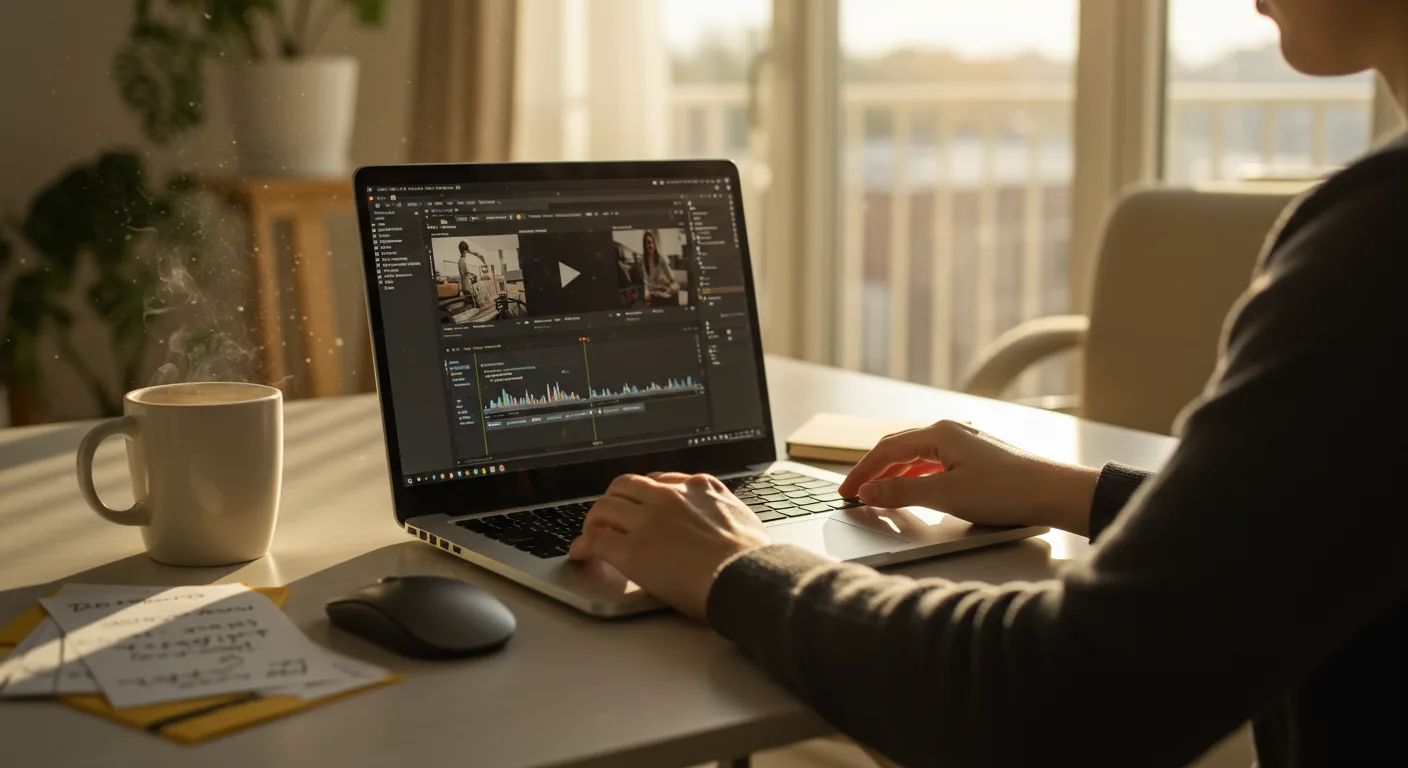
- You’ll see a timeline interface similar to other video editing software.
- Drag and drop your script elements onto the timeline.
- For each script element, add corresponding visuals. VidGen Pro integrates with several stock footage libraries, including Pexels and Unsplash. You can also upload your own footage.
- Use the search bar to find relevant visuals. For example, if your script mentions “outdoor furniture,” search for “outdoor furniture,” “patio furniture,” or “backyard.”
- Drag and drop the visuals onto the timeline, aligning them with the corresponding script elements.
Adding AI Voiceover
- Select the script element you want to add a voiceover to.
- Click the “AI Voiceover” button in the toolbar.
- Choose your preferred language and voice. VidGen Pro offers a wide range of realistic AI voices in over 50 languages.
- Adjust the voice speed and pitch to your liking.
- Click “Generate Voiceover.”
- Review the voiceover and make any necessary adjustments. You can regenerate the voiceover as many times as you need to get it just right.
Expected Outcome: A visually appealing video with a professional-sounding voiceover, all created with the help of AI. We had a client last year, a local Roswell landscaping company, who used this exact process. They saw a 30% increase in leads from their YouTube ads after switching to AI-generated videos. The time savings alone were worth the investment.
Step 5: Refining and Exporting Your Video
Almost there! Now it’s time to polish your video and export it for distribution.
If you’re looking to improve your video editing skills, there are many tutorials available online.
Refining Your Video
- Review your video carefully, paying attention to the timing, transitions, and overall flow.
- Make any necessary adjustments to the visuals, voiceover, and script.
- Add text overlays, graphics, and music to enhance your video. VidGen Pro has a library of royalty-free music and graphics you can use.
- Use transitions sparingly. Too many transitions can be distracting.
Exporting Your Video
- Click the “Export” button in the top-right corner of the video editor.
- Choose your desired resolution and frame rate. For YouTube, 1080p at 30fps is a good standard.
- Select your preferred file format. MP4 is the most common and widely compatible format.
- Click “Export.”
VidGen Pro will then render your video. The rendering time will depend on the length and complexity of your video, but it’s generally quite fast. Once the rendering is complete, you can download your video and upload it to YouTube, Facebook, or any other platform.
Common Mistake: Exporting your video with incorrect settings. Always double-check your resolution, frame rate, and file format before exporting. Otherwise, you might end up with a video that looks blurry or distorted.
The marketing world in 2026 demands efficiency and creativity. By embracing AI tools like VidGen Pro, and freelance creatives can thrive, not just survive. The key is to see AI as a partner, not a replacement. Use it to automate tedious tasks, generate fresh ideas, and free up your time to focus on what you do best: crafting compelling stories that resonate with your audience. Don’t be afraid to experiment, iterate, and find what works best for you. The future of freelance is bright, and it’s powered by AI.
Need creative marketing inspiration? There are many resources available online to help you generate fresh ideas.
Can VidGen Pro really replace human video editors?
Not entirely. While VidGen Pro automates many aspects of video creation, human creativity and judgment are still essential. Think of it as a powerful assistant, not a complete replacement. The AI generates a starting point, but the freelancer refines and perfects it.
How much does VidGen Pro cost?
VidGen Pro offers several pricing plans, ranging from a free trial to enterprise-level subscriptions. The “Freelancer Plus” plan, which I recommend, costs around $99 per month and includes ample AI credits. Check their pricing page for the most up-to-date information.
Is AI-generated content considered “authentic”?
That’s a complex question. While AI can generate content that sounds and looks authentic, it’s ultimately created by an algorithm. The key is to use AI responsibly and ethically, ensuring that your content is transparent and honest. Always disclose when AI has been used to create content.
What other AI tools can help freelance creatives?
Besides video creation tools like VidGen Pro, there are AI tools for writing (like Jasper), graphic design (like Canva AI), and social media management (like Buffer AI). Experiment with different tools to find what works best for your workflow.
How can I stay up-to-date on the latest AI trends in marketing?
Follow industry blogs, attend webinars, and join online communities focused on AI and marketing. The IAB (Interactive Advertising Bureau) publishes frequent reports on digital advertising trends, including the adoption of AI in marketing. Staying informed is crucial in this rapidly evolving field.
Don’t wait for the future to arrive; embrace it now. Start using AI tools like VidGen Pro to streamline your video creation process and deliver exceptional results for your clients. Your freelance career will thank you for it.


